Assistant answers
Create an AI assistant, with knowledge sources specified by you, to help your chatbot answer questions. Your AI assistant will only attempt to answer if your chatbot can’t find a relevant published Q&A answer.
In this article
Enabling assistant answers
Assistant answers is available on all Helpfruit plans.
Create your assistant
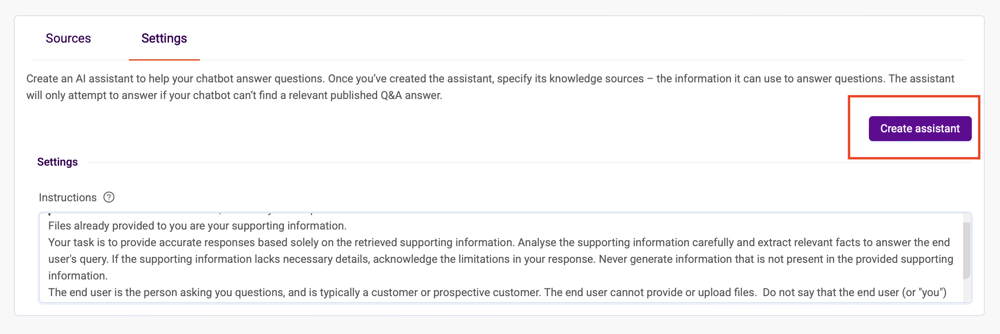
Go to https://portal.helpfruit.com/configuration/assistant and click Create assistant.
On new signups, an assistant is created by default.
Instructions
The instructions guide your chatbot’s AI assistant with information about their role and scope, and how they should respond. You can make edits or additions to the default instructions, to suit your brand and your chatbot's role, at any time.
Knowledge sources
Your assistant can use sources you specify to help your chatbot answer questions. Specify your sources on the Sources tab.
- You can specify web pages (via URL) on the Sources tab
- Your assistant will also use your existing knowledge - Q&A and help articles. This knowledge is updated whenever you publish changes to your Q&A or articles.
Adding web pages
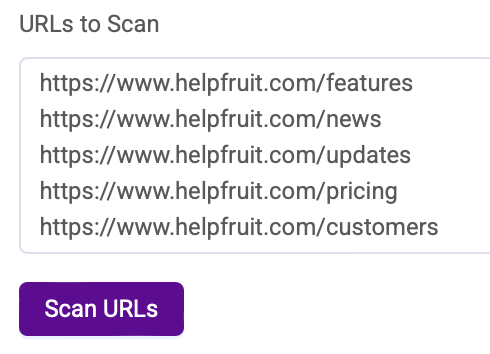
- Add the URLs you want to scan for text content (one per line).
- Pages must be publicly accessible and not password protected.
- For best results use the canonical URL - the preferred or primary version of a webpage. Eg https://www.helpfruit.com rather than https://helpfruit.com
- Our web crawling service will scan each URL and any pages below it in your site’s hierarchy – eg if you enter https://www.helpfruit.com, it will also scan https://www.helpfruit.com/features etc.
- Files with common extensions can be added individually by URL. Supported extensions:
.c, .cpp, .cs, .css, .doc, .docx, .html, .java, .js, .json, .md, .msg, .odt, .pdf, .php, .ppt, .pptx, .py, .rb, .tex, .txt - When you run a new scan, it overwrites your previous scan. If you want to re-run the same URLs, make sure they are listed in the URLs to scan box, eg:
Excluding web pages
You can specify URLs to exclude from your scan:
- individually by URL
- using a wildcard to exclude anything below - e.g. https://www.helpfruit.com/post/* will exclude any pages below this path - e.g. https://www.helpfruit.com/post/helpfruit-vs-gen-ai-chatbots etc.
Enter exclusions in the pink box:
For best results, make sure that the URL/s in your exclusion list match your canonical URL. For example, if your scan source is https://www.helpfruit.com make sure that your URL to exclude starts with https://www.helpfruit.com - i.e. not https://helpfruit.com/news
Viewing scan results
The URLs scanned table updates incrementally as your scan runs. It may take some time to complete. You don't need to stay on this screen while the scan runs.
You can view progress at any time by clicking refresh:
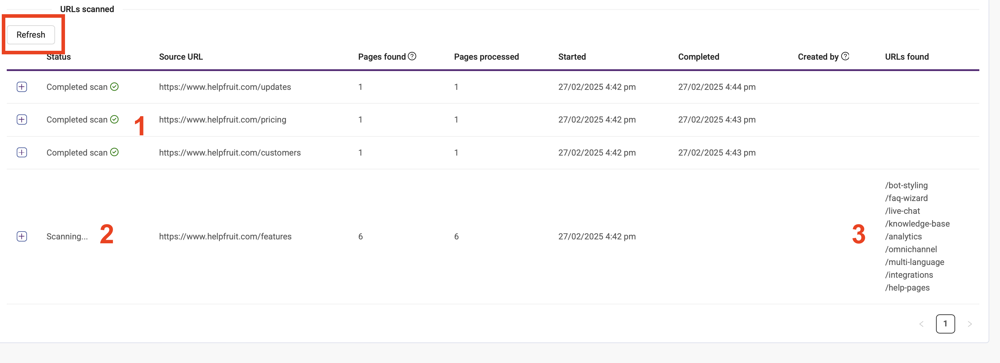
- Completed scans have a started and completed time, and a green tick
- Scans in progress say "Scanning...".
- As scans progress, you may see more URLs added on the right when you refresh, until the scan is complete.
When complete, the text content from all listed pages will be available to your AI Assistant, to help your chatbot answer questions.
Read our detailed guide to scanning.
Assistant answers in your Helpfruit chatbot
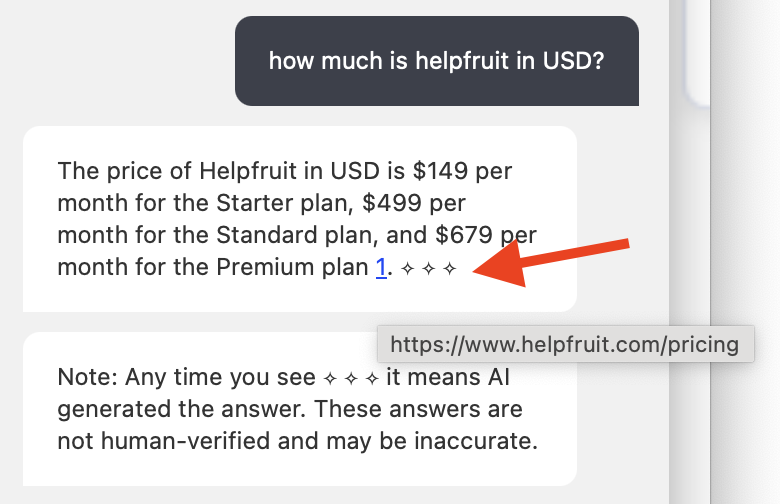
- Assistant answers in your Helpfruit chatbot are indicated with ✧ ✧ ✧ to differentiate them from your curated Q&A answers.
- They are also referenced back to the original source (indicated by the "1" link in the screenshot below), which the user can hover over to see the URL or click to navigate to the source.
- The first time in a session the user sees an assistant answer, it is followed by a note - "Any time you see ✧ ✧ ✧ it means AI generated the answer. These answers are not human-verified and may be inaccurate."
Weekly scans
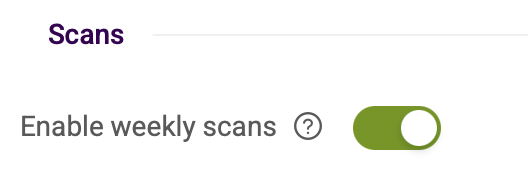
Once you have set up your scan to suit, you can enable weekly scans (premium plans only).
The crawler will then run weekly (unless you've recently run a manual scan) to create an updated version of your knowledge.
Troubleshooting - scanning sources
Reaching limits
If you see a yellow ⚠️ symbol in the Pages found column it means that the crawler has found more pages than it can process under your URL.
You could try entering URLs further down your site hierarchy. i.e. instead of entering https://www.helpfruit.com, enter https://www.helpfruit.com/news, https://www.helpfruit.com/features, etc.
Errors

If you see a red x symbol and "Error" it means there was an issue scanning your page/s. Errors may be a result of:
- access issues - page or sub-page/s can't be found or accessed
- service issues - problem with the services we use to scan your pages
- content issues - no scannable content found. Note that for PDF files, the content must be text (rather than images).
- duplicates detected
You could try re-running your scan. If you have repeated errors, contact us for help.
Note that even if an error is showing, some pages under a URL may have scanned successfully. They are displayed under the URLs found column.
Bot not answering questions you would expect it to
- For some websites, the infrastructure may load (e.g. CMS code) before your site and content. The scanning services we use may think that the page has scanned, when in fact it's just that infrastructure.
- We don't get an error - it looks like the page has scanned - but there's no content.
If you are experiencing this issue, please contact us for advice.