Forms error logging
Helpfruit logs form errors so you can identify failed submissions, check whether the issue is ongoing, and decide what to troubleshoot next. You can review logged errors in the Helpfruit portal and receive an email notification with the same details.
Quick links
- What forms error logging shows
- Start by identifying the type of problem
- Where to find logged errors
- Review an error in the portal
- Review an error from the email notification
- Common error types
- Common troubleshooting patterns
- Decide what to do next
- When to contact Helpfruit
- After you review the error
What forms error logging shows
Forms error logging helps you identify when a form submission did not complete successfully.
A logged error will include:
- the date and time of the error
- the error message
- a link to the related conversation
- API status details, where available
- the affected form
A single logged error does not always mean the form is currently broken. Some errors are temporary, while others point to a configuration or backend issue that needs follow-up.
Start by identifying the type of problem
Before you troubleshoot a logged form error, check whether this is:
- an existing form that was working before, or
- a new form you are setting up for the first time.
This matters because the likely cause and the best next step are often different.
If an existing form stopped working
If a form was working and then you see one error, it may be a temporary issue or a one-off data problem.
For example:
- the external API was temporarily unavailable
- the request timed out
- the submitted data caused one failed request
If the same form keeps failing when you test it again, the connected API or form configuration may have changed and now needs attention.
If you are setting up a new form
If the form has never worked, there may be one or more set-up issues.
For example:
- the API endpoint is incorrect
- the request format is wrong
- authentication is missing or invalid
- the backend service is unavailable
- the API is being used in a way the backend does not support
When a new form fails, it is usually best to review the full configuration and test each part of the setup.
Where to find logged errors
You can review logged form errors in the Helpfruit portal.
Go to Actions > Forms.
If a form has a recent (last 30 days) error, you may see an error indicator beside the form name. Expand the form row to view the latest logged error.
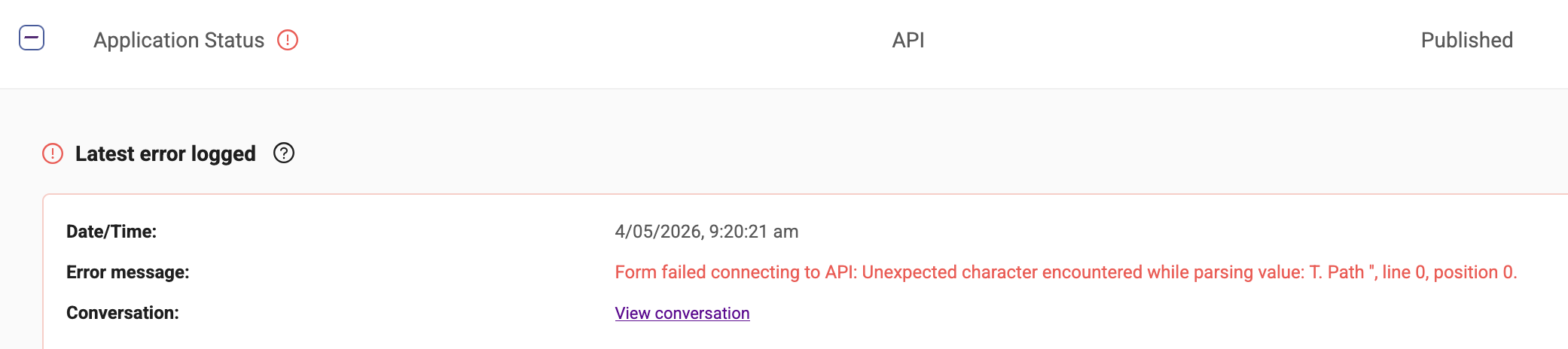
You will also receive an email notification for form errors.
Review an error in the portal
- Go to Actions > Forms.
- Find the affected form.
- Look for the error indicator beside the form name.
- Expand the form row to view Latest error logged.
- Review the available details, such as:
- Date/Time
- Error message
- Conversation
- Select View conversation to inspect what happened during the submission.
- Test the form again with a simple example to confirm whether the issue is still happening.
Review an error from the email notification
Helpfruit may send a forms error log email when a submission fails.
The email may include:
- Form name
- Message
- # of errors
- First error
- Last error
- Action
- Conversations
- API status code
- API response
- Form ID
Use the conversation link in the email to review the affected interaction, then test the form again in the portal.
Common error types
Unexpected character while parsing value
This usually means the API returned data in an unexpected format, or a value in the request or response could not be parsed correctly.
What to do:
- Open the related conversation.
- Check what the user entered.
- Test the form again with a simple value.
- If the issue only happened once, treat it as a one-off input or response issue unless it happens again.
Invalid status code for API response
This means the external API returned an error status instead of a successful response.
For example:
- 401 may mean credentials are invalid, expired, or revoked
- 404 may mean the endpoint is incorrect or no longer available
- 5xx may mean the external service had an internal error or is temporarily unavailable
- 502 may mean a proxy service such as Cloudflare could not reach the backend service at all
A 502 error often means the request reached a proxy or gateway service, but the backend API behind it was unavailable or not responding correctly.
What to do:
- Check whether the issue is still happening.
- Review any API credentials or tokens used by the form.
- Ask your API provider or internal technical team to check the service if needed.
Common troubleshooting patterns
| Situation or error pattern | Likely cause | Next step |
|---|---|---|
| An existing form shows one error but usually works | Temporary outage, timeout, or one-off data issue | Review the conversation and test again |
| An existing form keeps failing after it previously worked | The API, credentials, endpoint, or backend behaviour may have changed | Retest the form and check what changed in the connected service |
| A new form fails during first setup | Configuration, authentication, endpoint, request format, or backend issue | Review the full setup and test each part of the integration |
| 401 or invalid grant | Expired or invalid credentials | Update the token or API authentication |
| 502 | Proxy or gateway could not reach the backend service | Check whether the backend service is available and retry later |
| Other 5xx error | External service problem | Retry later and check with the API provider |
| Repeated failures across multiple conversations | Ongoing configuration or service issue | Contact Helpfruit or the API provider with examples |
Decide what to do next
- If the form worked before and only failed once, monitor it and test again.
- If the form worked before and now fails repeatedly, check for changes in the API, credentials, or backend service.
- If the form has never worked, review the full form and API setup before treating it as a temporary outage.
When to contact Helpfruit
Contact Helpfruit if:
- the same form keeps generating error log entries or emails
- the form still fails when you test it
- the error message is unclear
- the conversation link does not give enough detail
- you need help confirming whether the issue is in Helpfruit or the connected API
If the error includes an API status code or response, include that in your message to help speed up troubleshooting.
After you review the error
If the form is working again and the error was a one-off event, no further action may be needed.
If the problem repeats, record:
- the form name
- the form ID
- the exact error message
- the API status code and response, if shown
- example conversation links
- the date and time of the failure