Live chat notifications
Live chat notifications tell you when a new chat candidate appears, when a chat request has been accepted, or when you have new messages. Learn more about notifications -how they work, how to set them up, and how to troubleshoot if you run into issues.
In this article
Prerequisites
- Helpfruit standard or premium plan (live chat is not available on starter plans)
- Live chat enabled (you can do this here)
Types of notification & how to enable them
Push notification
Push notifications are available in desktop only. They come in two variations -
- A notification in the portal – visible when you have the Helpfruit portal open, as long as you have interacted with the page on first open (eg at the beginning of the day). For example:

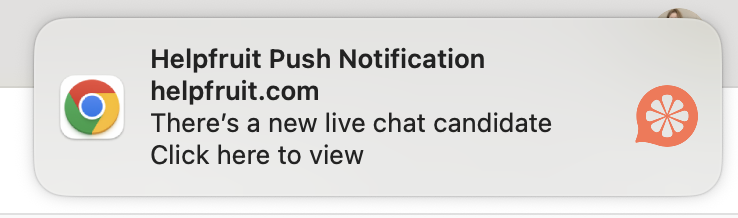
- A system notification – this notification type is visible even if you don't have the portal open. It's browser specific - you need to have signed up on that browser for it to work. For example:
Enabling push notifications
Enable push notifications from your live chat inbox screen - 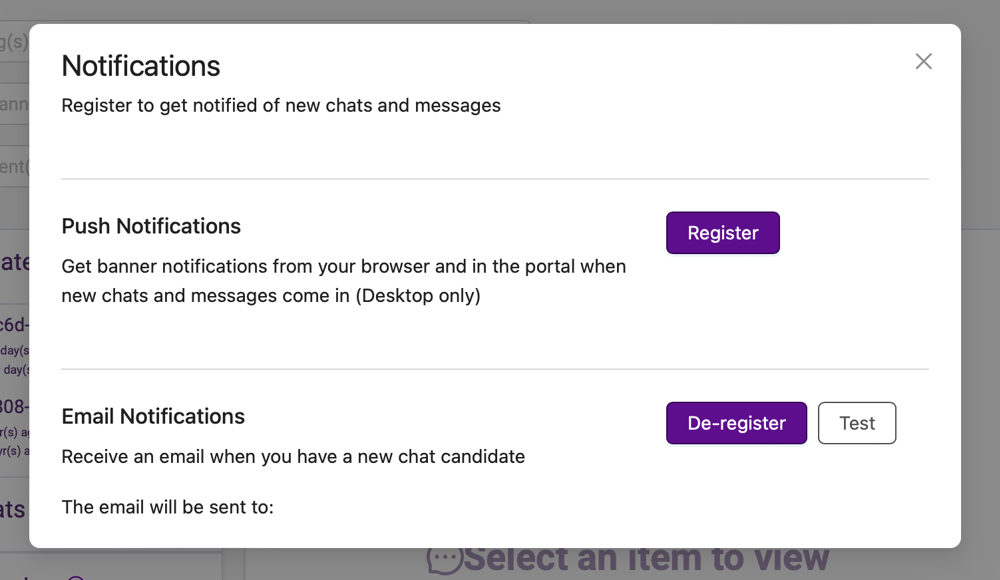
Email notification
Email notifications, when enabled, are sent to the email address associated with your user account when there's a new live chat candidate.
Register for e-mail notifications on the live chat inbox screen.
When you register, you will also see the option to send a test notification.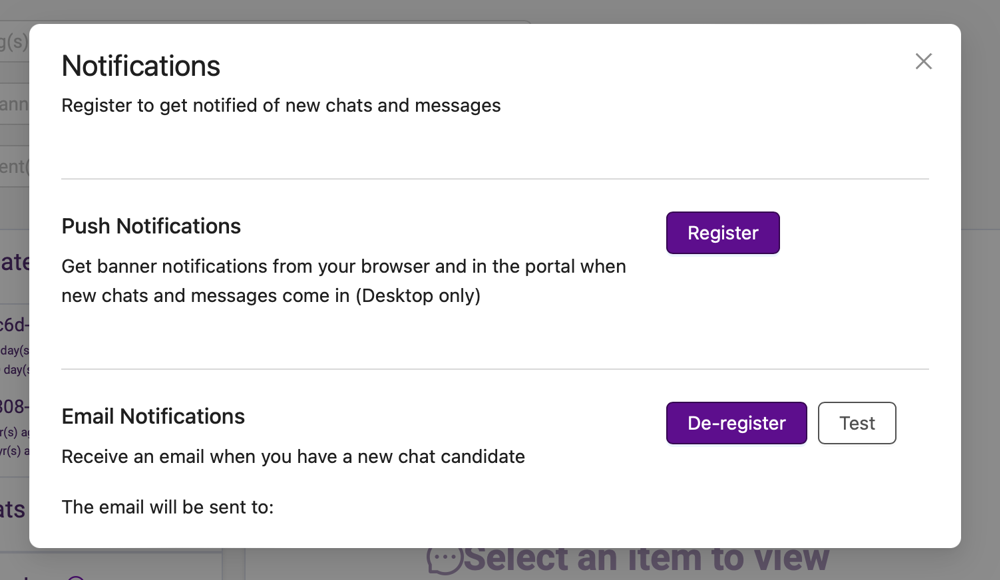
Sound notification
Notification sounds can be enabled to play when a push notification is received for:
- New chat candidate
- New chat accepted - either by the agent (one step) or the user (two step)
Enabling notification sounds
Notification sounds are currently a system admin feature - contact us to enable.
Once notification sounds are enabled, you can set the duration of each sound on the live chat configuration page - anywhere between zero seconds (does not play) and 30 seconds:

Sound behaviour - multiple chats and notifications
We only ever play one sound at a time - to avoid clashing sounds and cacophony in the office! Here's what that means in practice:
New chat candidate
- Sound will play for all agents/users with notifications enabled.
- It will continue to play for the duration you have specified in the portal - even after someone clicks on the notification or accepts the chat.
Another new chat candidate is received:
- While another sound is playing? No new sound
- No sound currently playing? New sound plays
Agent accepts a chat (or user accepts, in the case of 2-step live chat)
- While another sound is playing? No new sound
- No sound currently playing? New accept sound plays
- Accept sound may not be required/useful for 1-step live chat. In this case, you can set the duration to zero seconds.
Troubleshooting tips
Can't hear any notification sounds
- Make sure that you have the volume up and headphones unplugged (or on).
- Click anywhere on the portal (this gives the page permission to play audio), then retry.
- Ensure live chat audio is enabled (check with the Helpfruit team if you're not sure) and make sure that the sound duration is > 0.
- Check to make sure that you haven't muted the relevant tab in your browser
- Check that the tab hasn't been put to sleep by the browser - you can adjust settings to keep specific sites active - eg in Chrome
- Notification sounds may not work consistently on Safari - we recommend Chrome or Edge
Not receiving system notifications
- Make sure that you registered for notifications on the browser you are using. If you are using Chrome, you need to have registered for notifications on Chrome. You can check this on the live chat inbox screen, and send a test to make sure. If working correctly you should receive bot a portal and system notification,
- Make sure that portal.helpfruit.com is allowed to send notifications. Learn more: Edge | Chrome
- If you have checked the steps above and are still experiencing delays or occasionally missing system notifications, this may be a limitation of the web push service used to send these notifications.
- Portal notifications are sent using a different service (SignalR) and provide an alternative form of push notification if you find that system notifications are not working reliably.
Receiving duplicate notifications
- The portal shows the first notification that arrives; if both channels (SignalR and web push) arrive with a delay you may see two. This is expected in rare cases, but should only occur infrequently.