Tag organisation
Tags help you organise your content, and drive the structure of information displayed on Help Pages. Learn more about tags
Create parent and child tags (for example, Product > Features, Product > Pricing) to group related content, make Help Pages navigation simpler and speed up searches.
Table of Contents
How to organise your tags
Your tags can have no/flat structure, or a hierarchy.
Flat structure
A flat structure means that all tags have equal weight. This can be OK when you have a small number of content tags, but may become unwieldy or make information harder to find when your help content spans many topics.
We highlight on your articles page when you have more than 20 articles and no tag hierarchy - e.g.:

Hierarchical
A hierarchical or tree structure has layers of information - topics and sub-topics. You can have as many layers as you want, to suit the information you are organising.
Add parent tags
To add hierarchy, you need to add or designate parent tags.
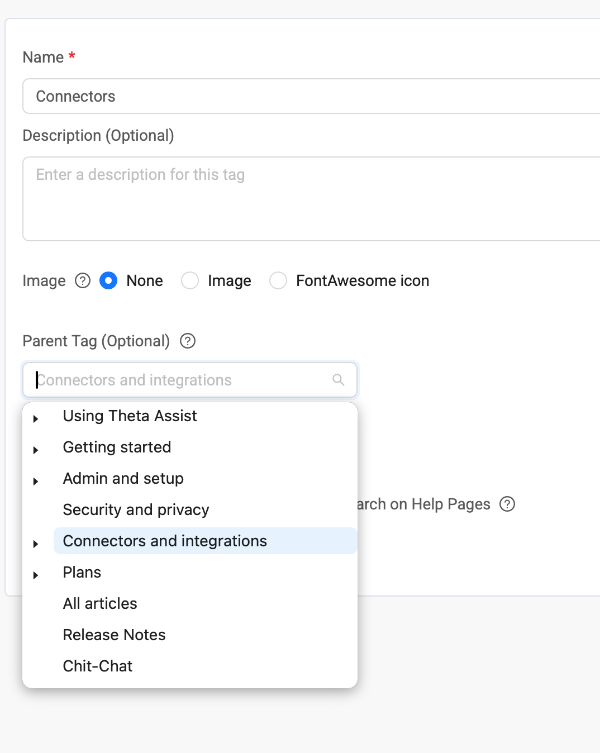
Edit a tag, and then select its parent. In this example, Connectors and integrations is the parent tag for Connectors
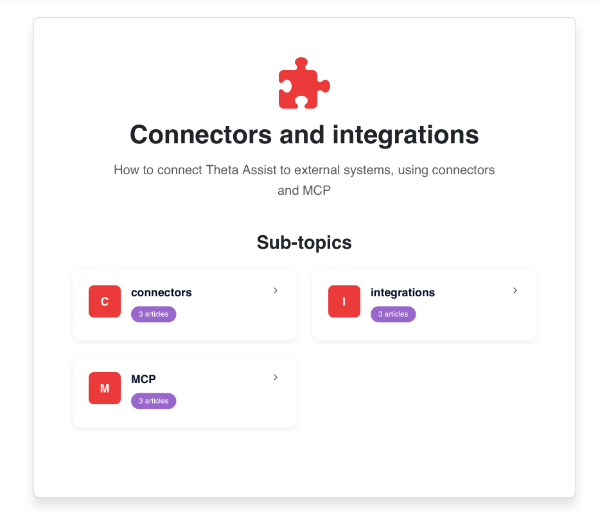
And on Help Pages, the topic is displayed like this:
Featured tags
Featured tags are highlighted at the top of your Help Pages homepage, and provide quick links to priority topics - this can be outside of the parent > child hierarchy if you wish.
Tag ordering/display
Featured tags can be re-ordered to suit in the portal. Other tags are displayed (under their parent tags if relevant) in alphabetical order.
How to see all articles
Featured tags are highlighted on your Pages homepage. To ensure that your users can navigate to all your content from the homepage, you may wish to create a tag called "All articles" or similar.
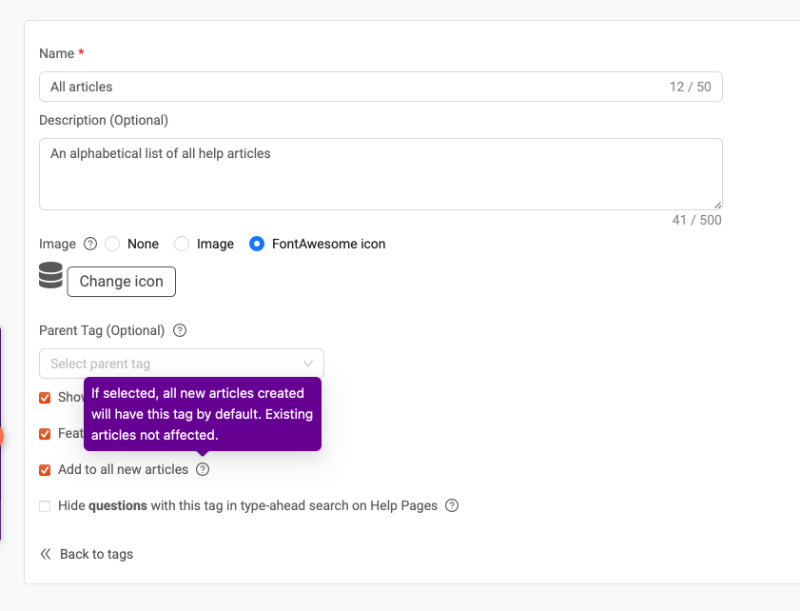
When creating/editing a tag, you can also set this tag to be applied to all new articles by default: